
Sync files
Create a sync task
Use a sync task to keep a folder on your Android device synchronized with a folder on a computer, NAS, or cloud service.
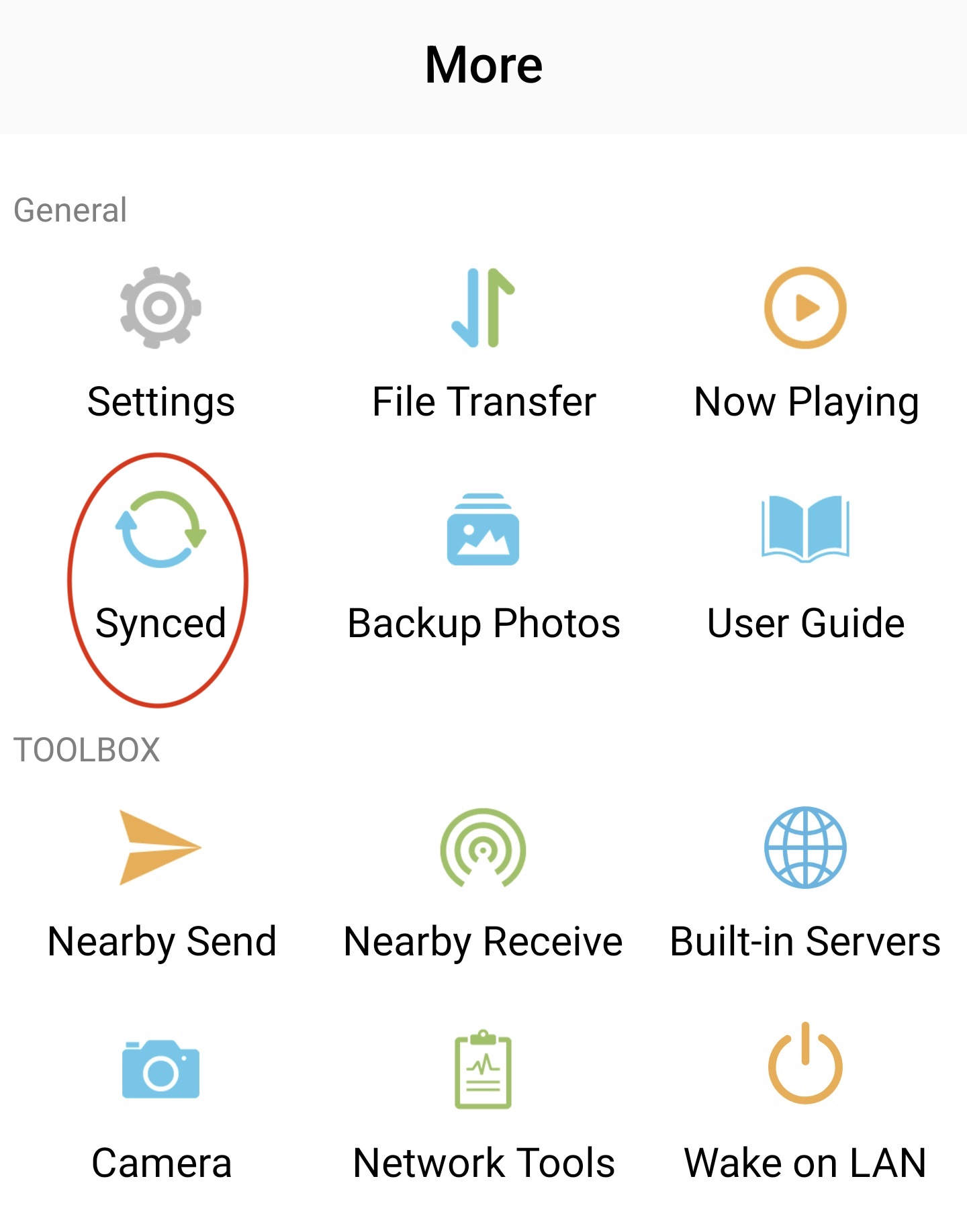
- Open the More tab and tap Synced.
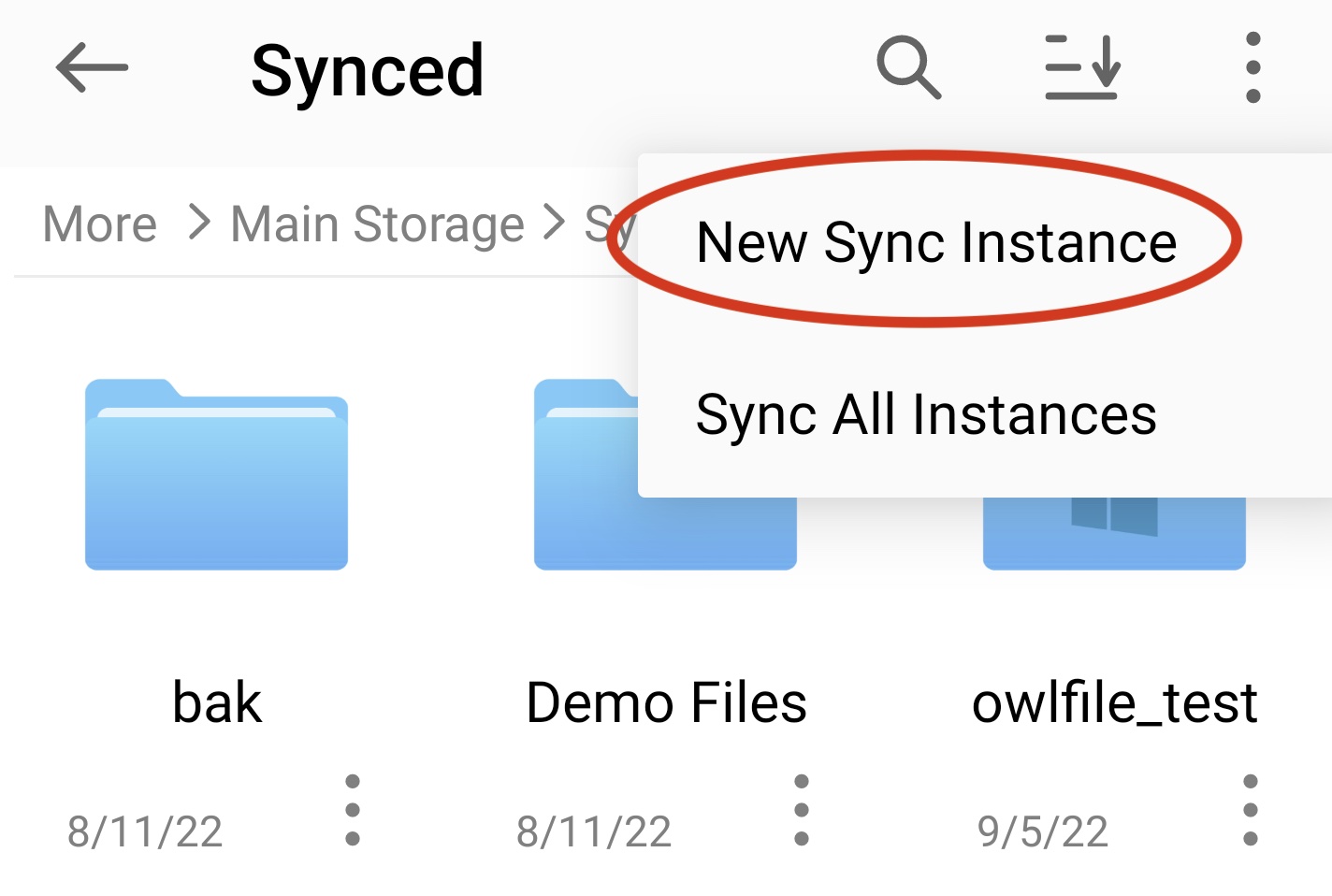
- Tap New Sync Instance.
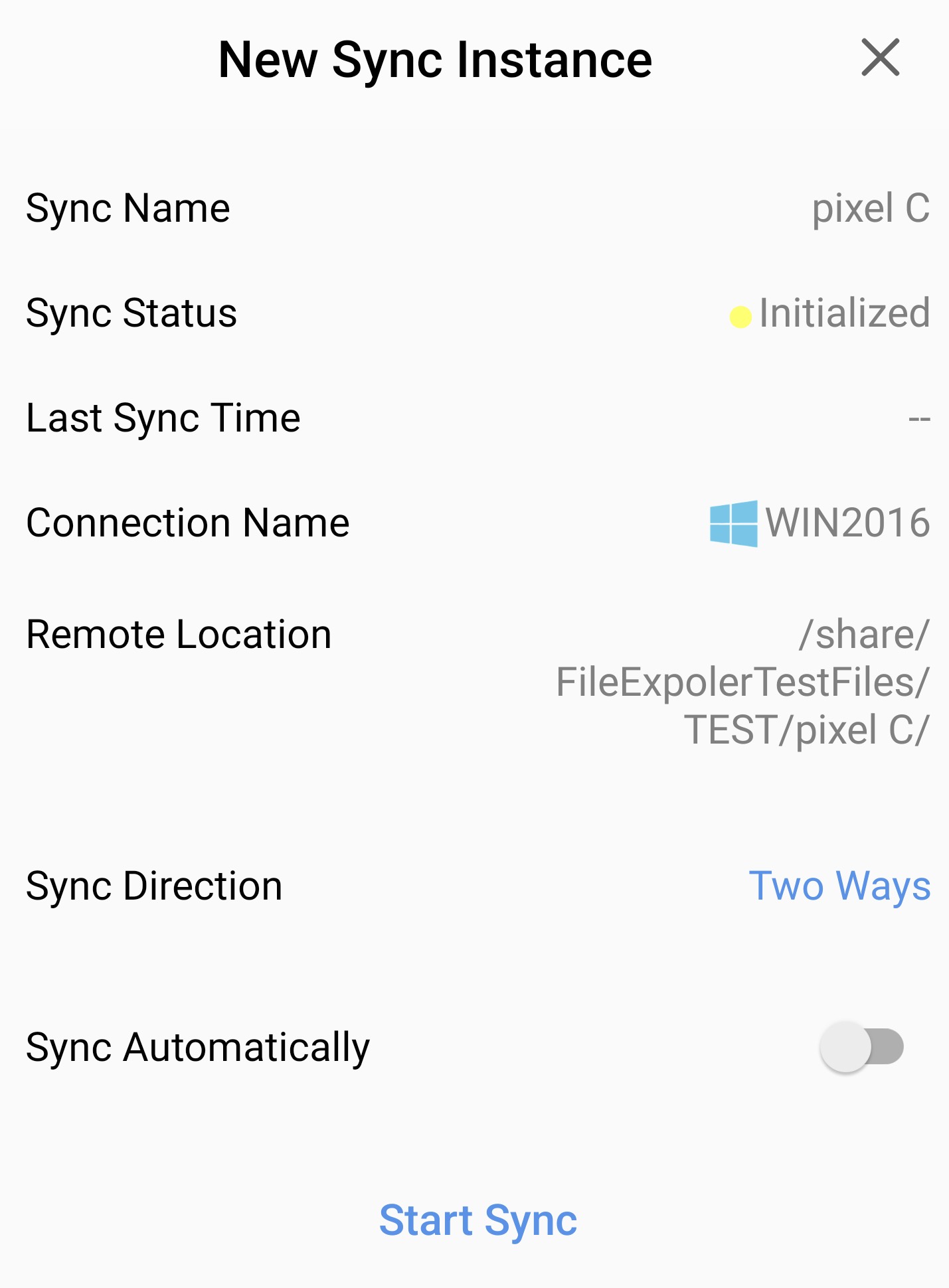
- Select a local folder and a remote folder, then tap Next.
- Choose a sync direction:
- Remote to Local copies remote changes to the device. Local changes are not copied to remote storage.
- Local to Remote copies local changes to remote storage. Remote changes are ignored.
- Two Ways keeps both folders synchronized.
- To run the task when the app starts, turn on Sync Automatically.
- Tap Start Sync.
Run a sync task
- Open More > Synced.
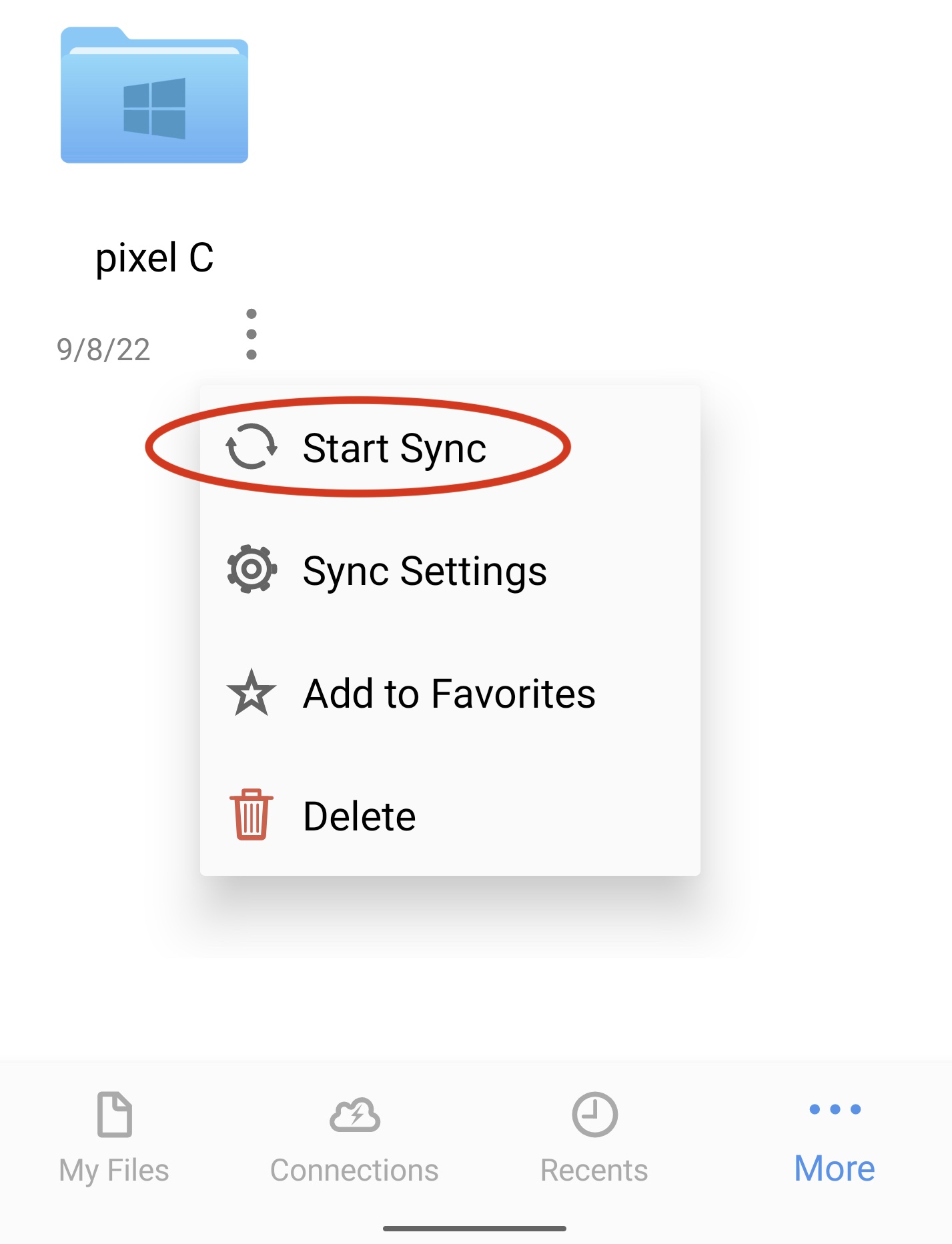
- Open the context menu for the sync task and tap Start Sync.
Delete a sync task
- Open More > Synced.
- Open the context menu for the sync task and tap Delete.
Deleting a task moves its local data to the trash. Remote data remains unchanged.