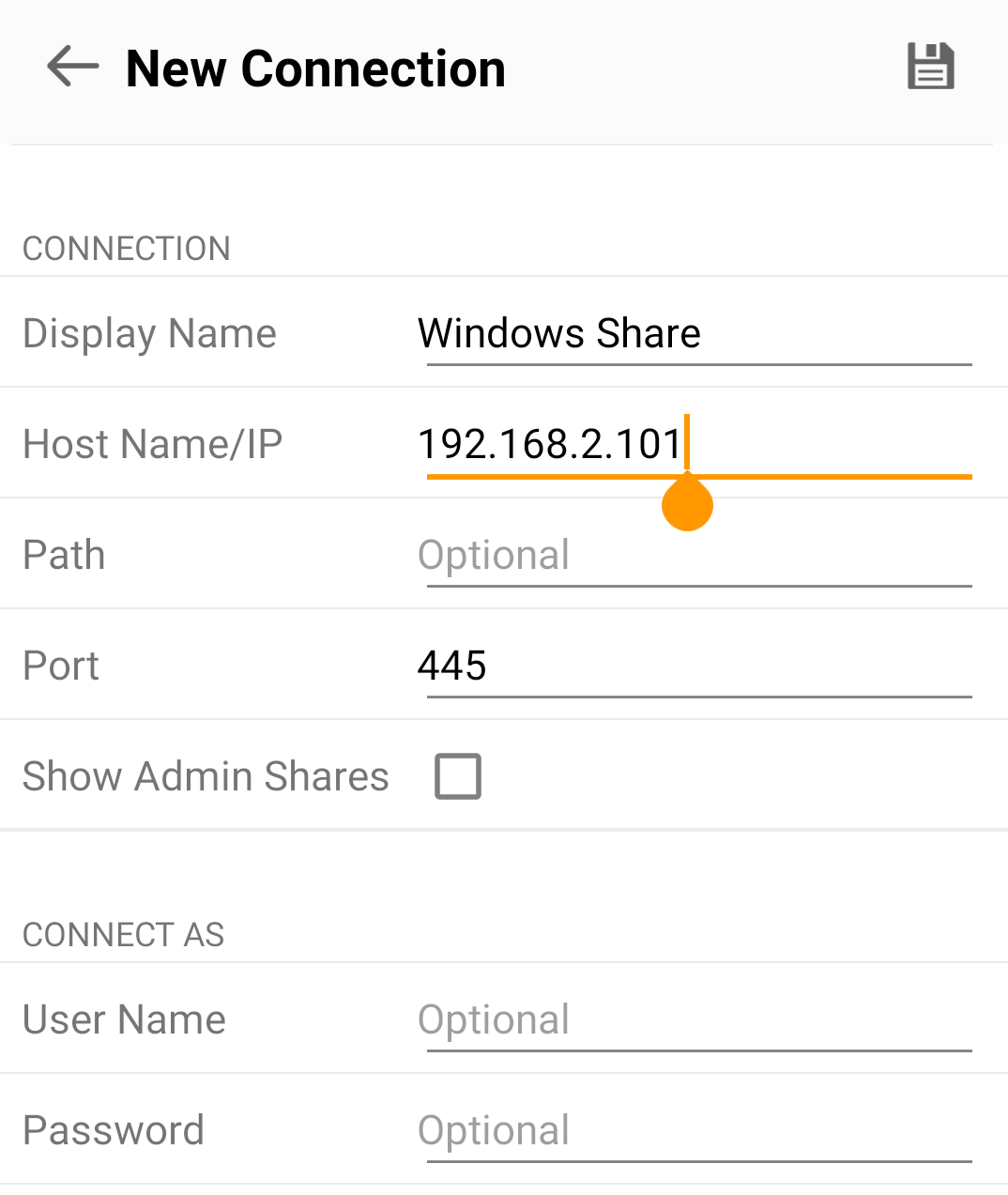
Set Up a Connection
Before connecting from Android, configure file sharing on the Mac or PC that you want to access. See Settings for Mac, Settings for Windows 10, or Settings for Windows 7/8.
Once the shared folders are ready, use Auto Discovery or enter the connection details manually.
Auto Discovery
- Open FE File Explorer on your Android device.
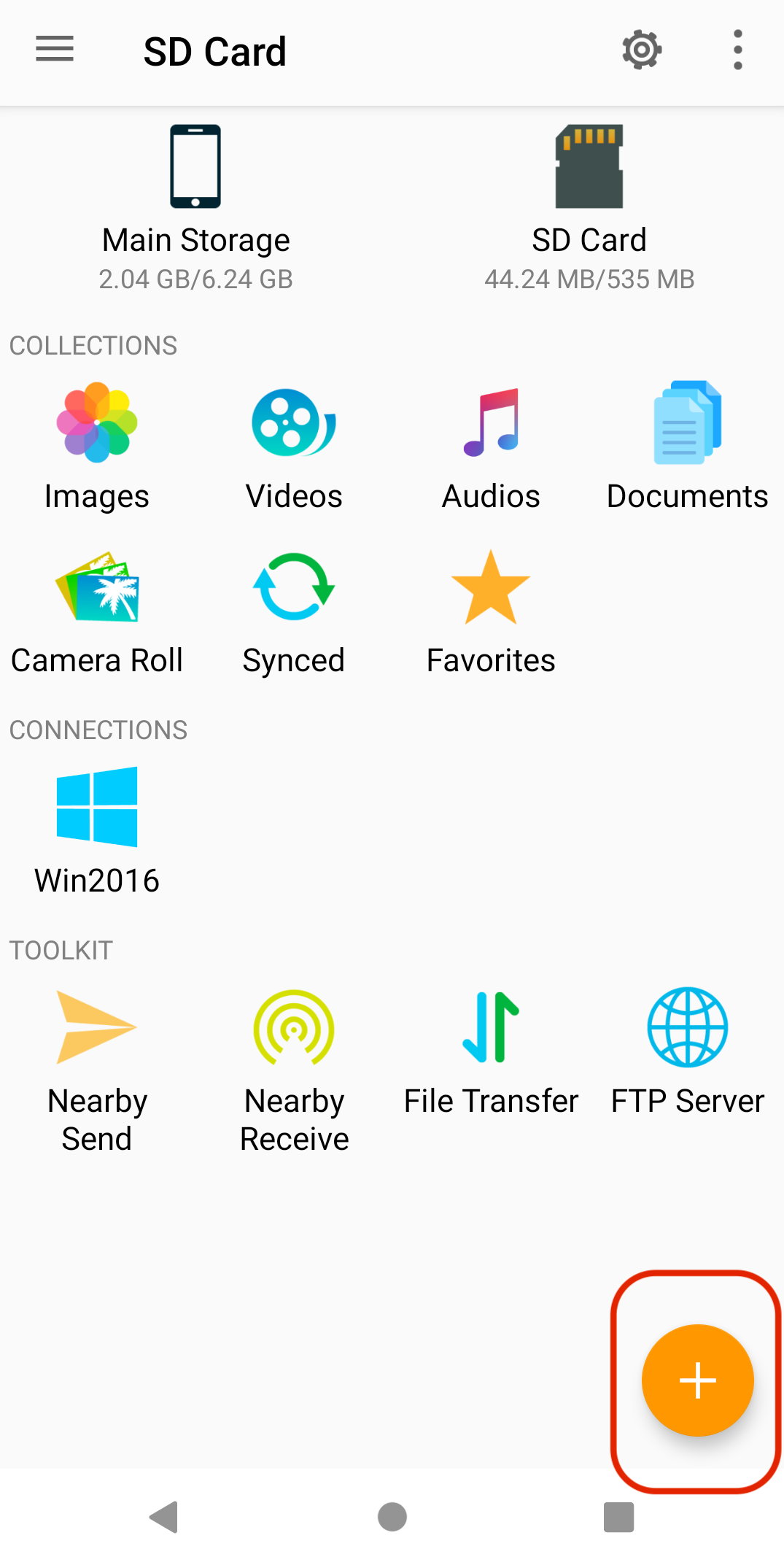
- Tap +, then select the connection type, such as Windows, Mac, or NAS.
- The computers and NAS devices on your local network appear in Network Neighborhood.
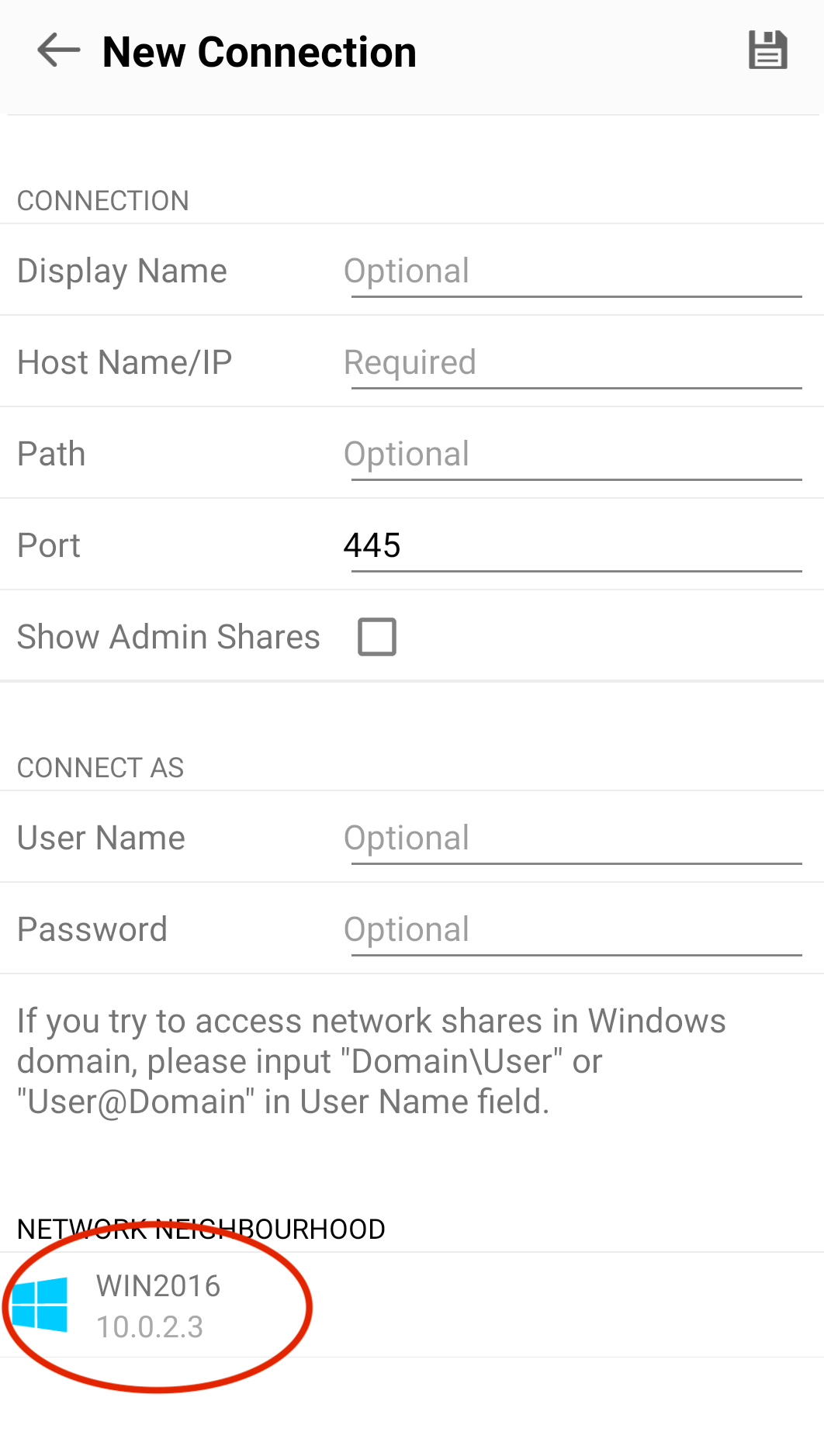
- Tap the computer name, then enter its username and password.
If the computer belongs to a Windows domain, enter the username as Domain\UserName or UserName@Domain.
Set Up a Connection Manually
- Open FE File Explorer.
- Tap +, then select the connection type, such as Windows, Mac, or NAS.
- Enter the computer name or IP address.
- Enter the username and password used to sign in to that computer.
- Tap Save.