Sync Files
FE File Explorer can synchronize files with computers, servers, and cloud storage.
- Create a sync instance.
- Open a folder on a computer, server, or cloud storage, then open the folder’s context menu.
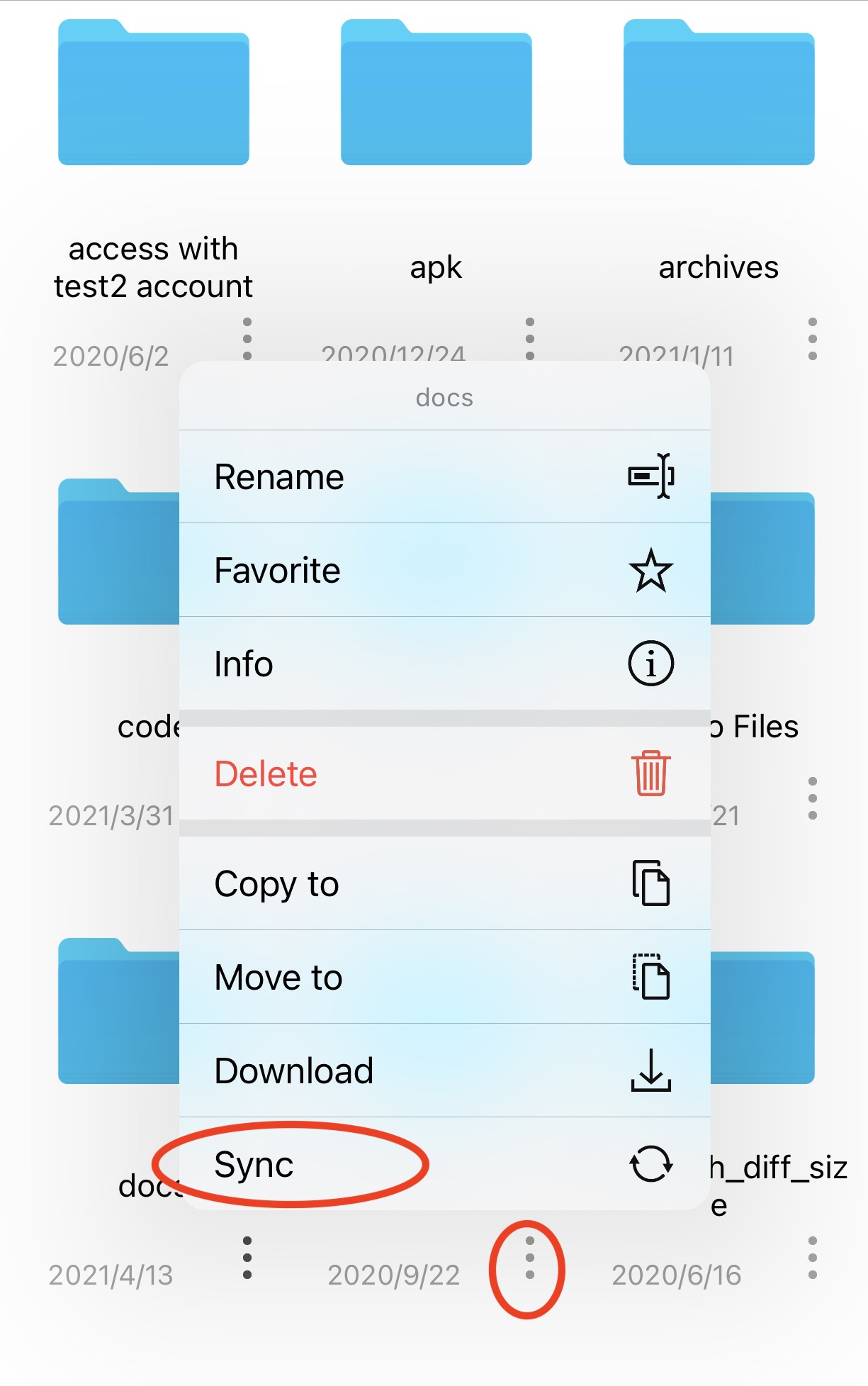
- Tap Sync to start the synchronization process.
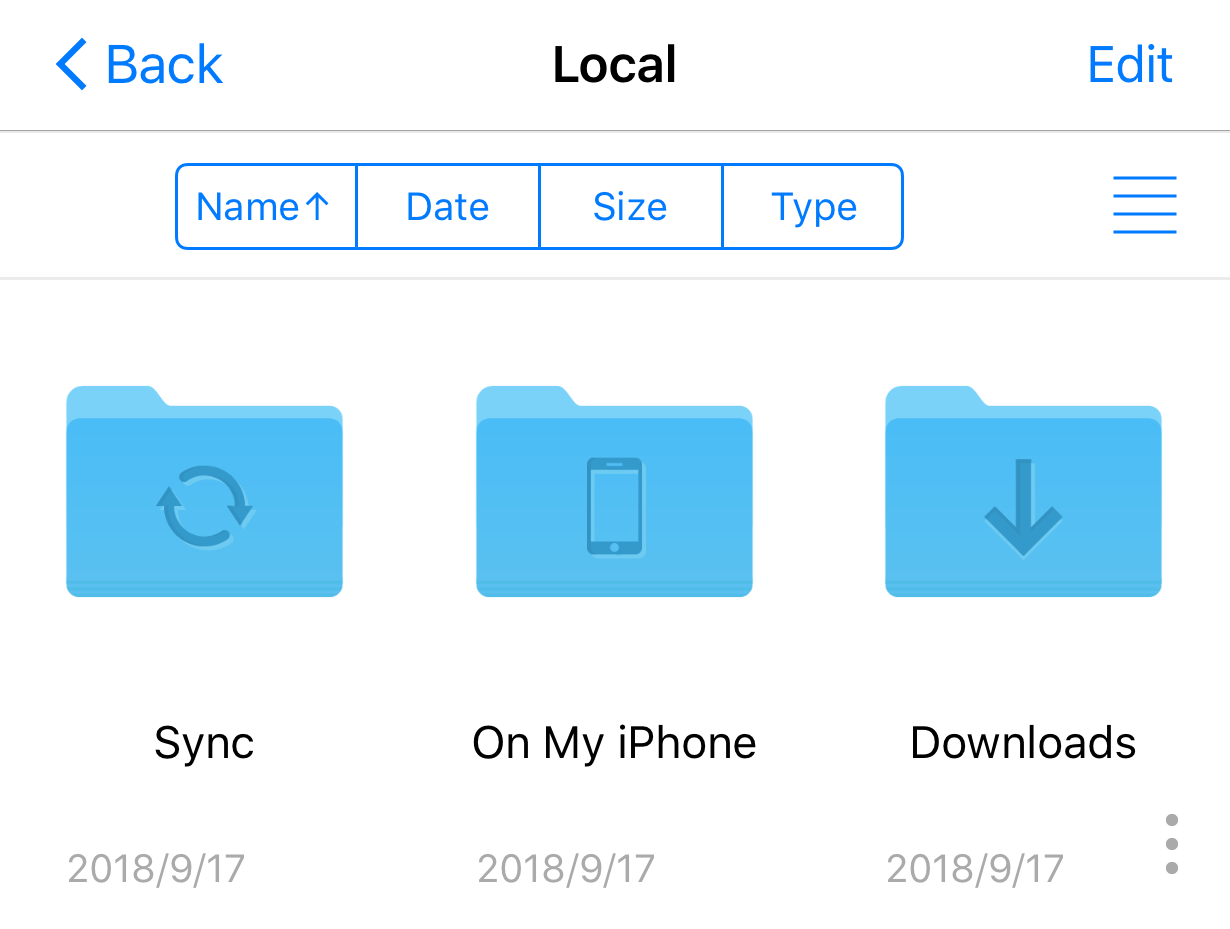
- Files are synchronized to My Files > Sync.
- After creating the sync instance, you can change files and start synchronization from My Files > Sync.
File synchronization is two-way: changes on the computer are synchronized to your iPhone or iPad, and changes on the iPhone or iPad are synchronized to the computer.