
Settings for Windows 10
Configure Sharing Options
- Open Settings and go to Network & Internet.
- Select Ethernet, then open Change advanced sharing options.
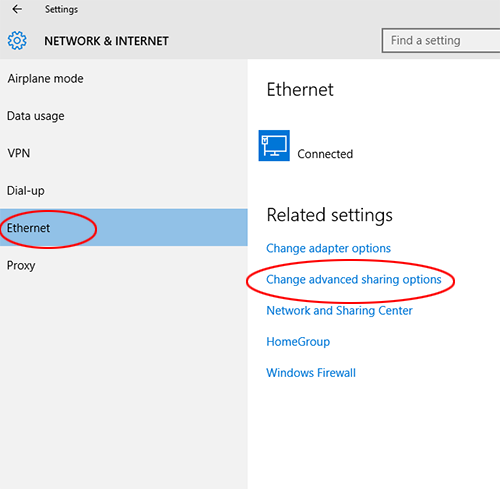
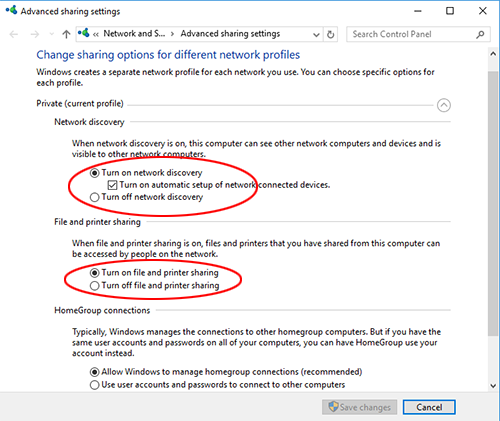
- Turn on Network discovery and File and printer sharing.
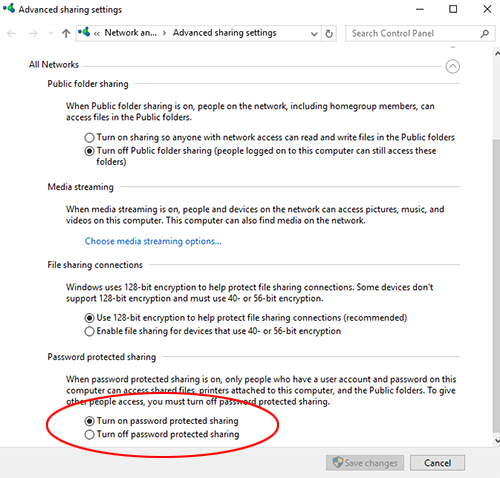
- Under All Networks, turn on Password protected sharing, then save the changes.
Share a Folder
- Right-click the folder and select Properties.
- Open the Sharing tab and click Share.
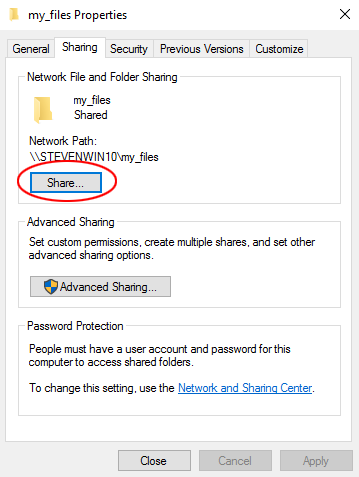
- If needed, click Advanced Sharing to configure the share name and permissions.
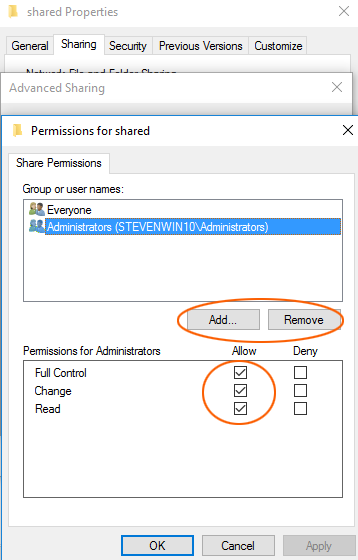
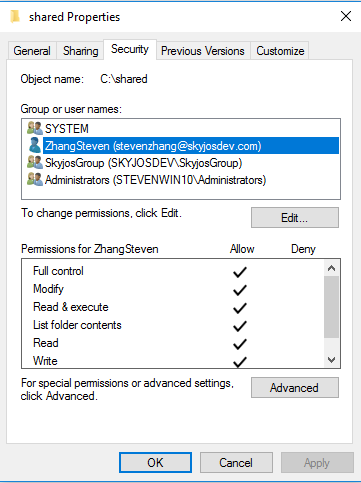
- On the Security tab, click Edit and grant the required permissions. Choose Full Control if FE File Explorer should be able to edit and delete files.
Find Your Username and Password
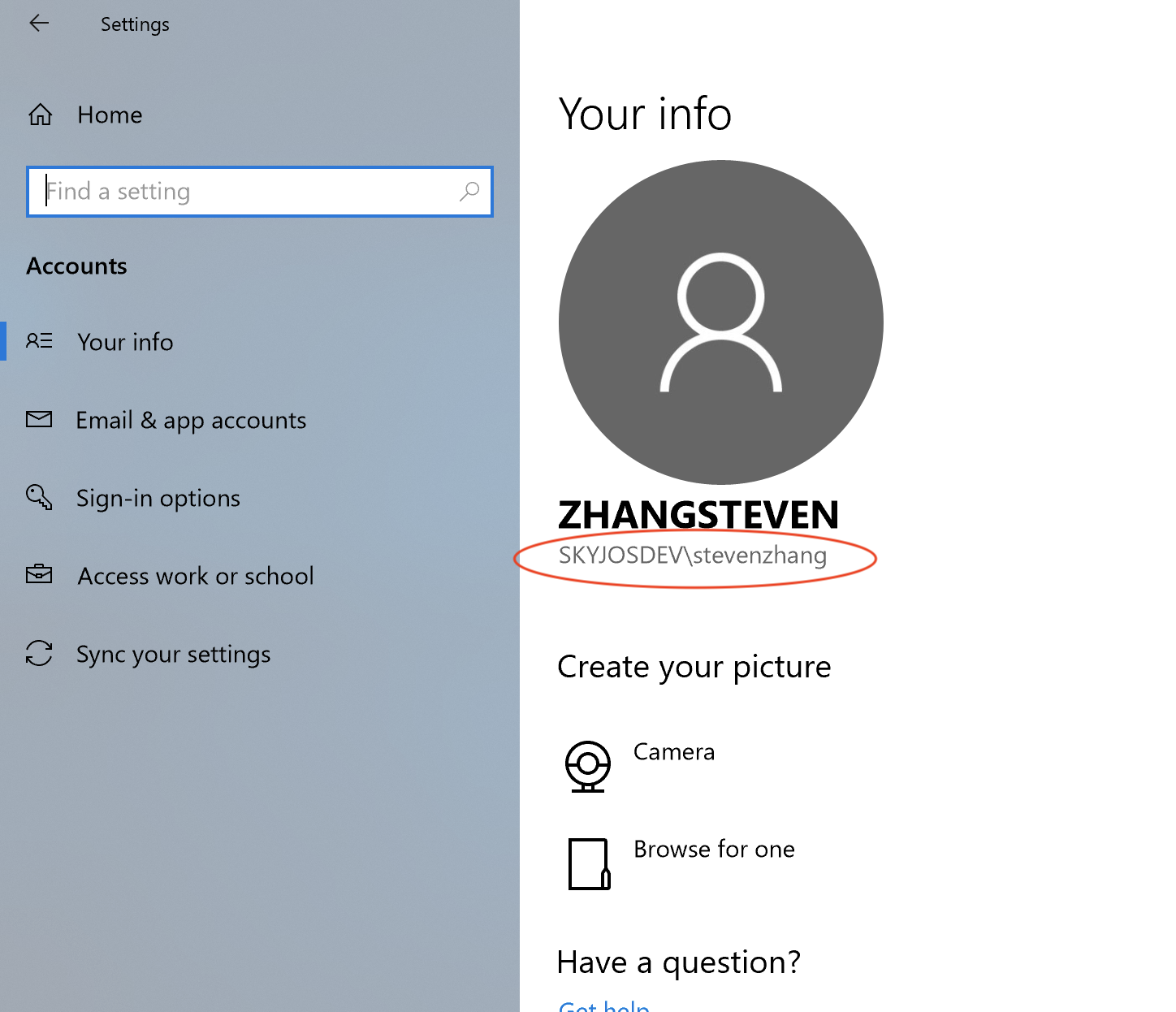
Open Settings > Accounts. Your account name is shown there. Use your Windows account password when connecting; a PIN cannot be used to connect to a password-protected share.
Find Your Computer Name
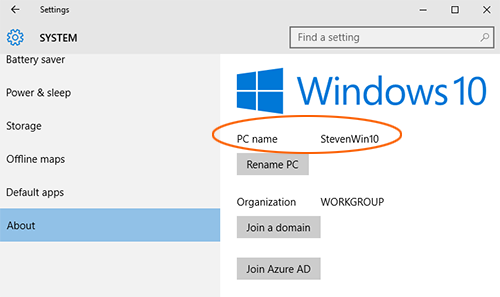
Open Settings > System > About and find the device name. Use it in FE File Explorer’s Computer Name/IP field.
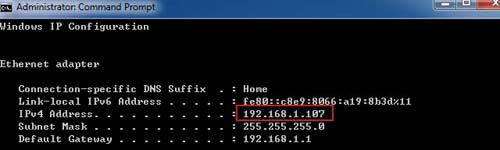
Find Your IP Address
- Open Command Prompt.
- Run
ipconfig. - Find the IPv4 address for the network connection you are using.
Troubleshooting
If the connection times out, confirm that your iPhone or iPad and computer are on the same Wi-Fi network, and allow File and Printer Sharing through Windows Firewall.
If Windows file sharing still does not work, install Redfish on the computer and connect to its IP address on port 20445.