Built-in FTP Server
FE File Explorer includes an FTP server for transferring many files between your iPhone or iPad and a computer.
Start the Built-in FTP Server
- Connect the iPhone or iPad and the computer to the same Wi-Fi network.
- Start the built-in FTP server which is located on the toolbar of app main page.

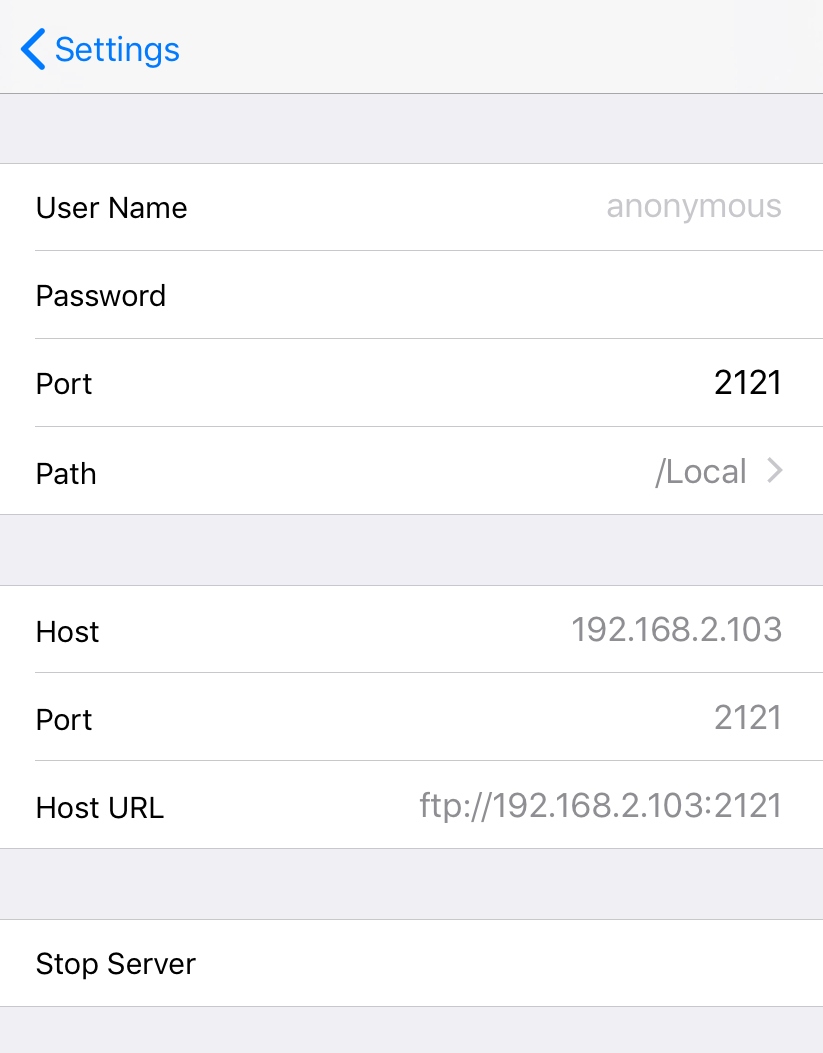
Connect from a Computer
Use an FTP client such as FileZilla or Cyberduck to connect to the address shown in FE File Explorer. Enter the displayed FTP access information, then connect. The FTP port is 2121.
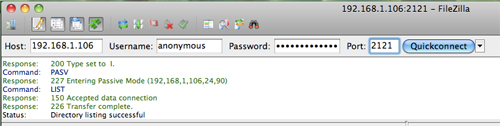
Copy Files from a Computer to FE File Explorer
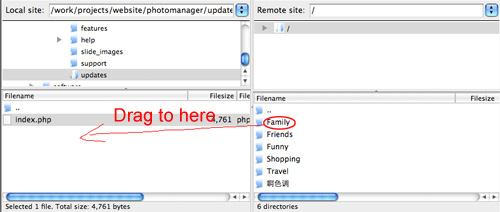
Drag a folder or file from the computer to a folder in FE File Explorer.
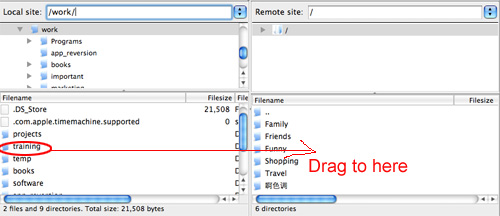
Copy Files from FE File Explorer to a Computer
Drag a folder or file from FE File Explorer to a folder on the computer.