Pens and Brushes
Pens and Brushes
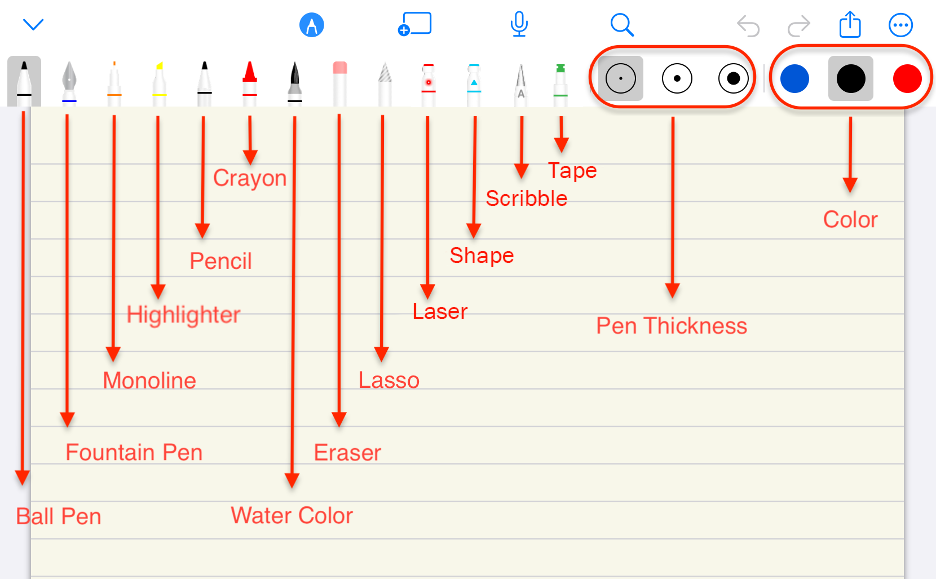
UltraNotes provides a range of pens and brushes. Adjust each tool’s thickness and color, and turn individual pens and brushes on or off in the app settings.
Draw and Hold
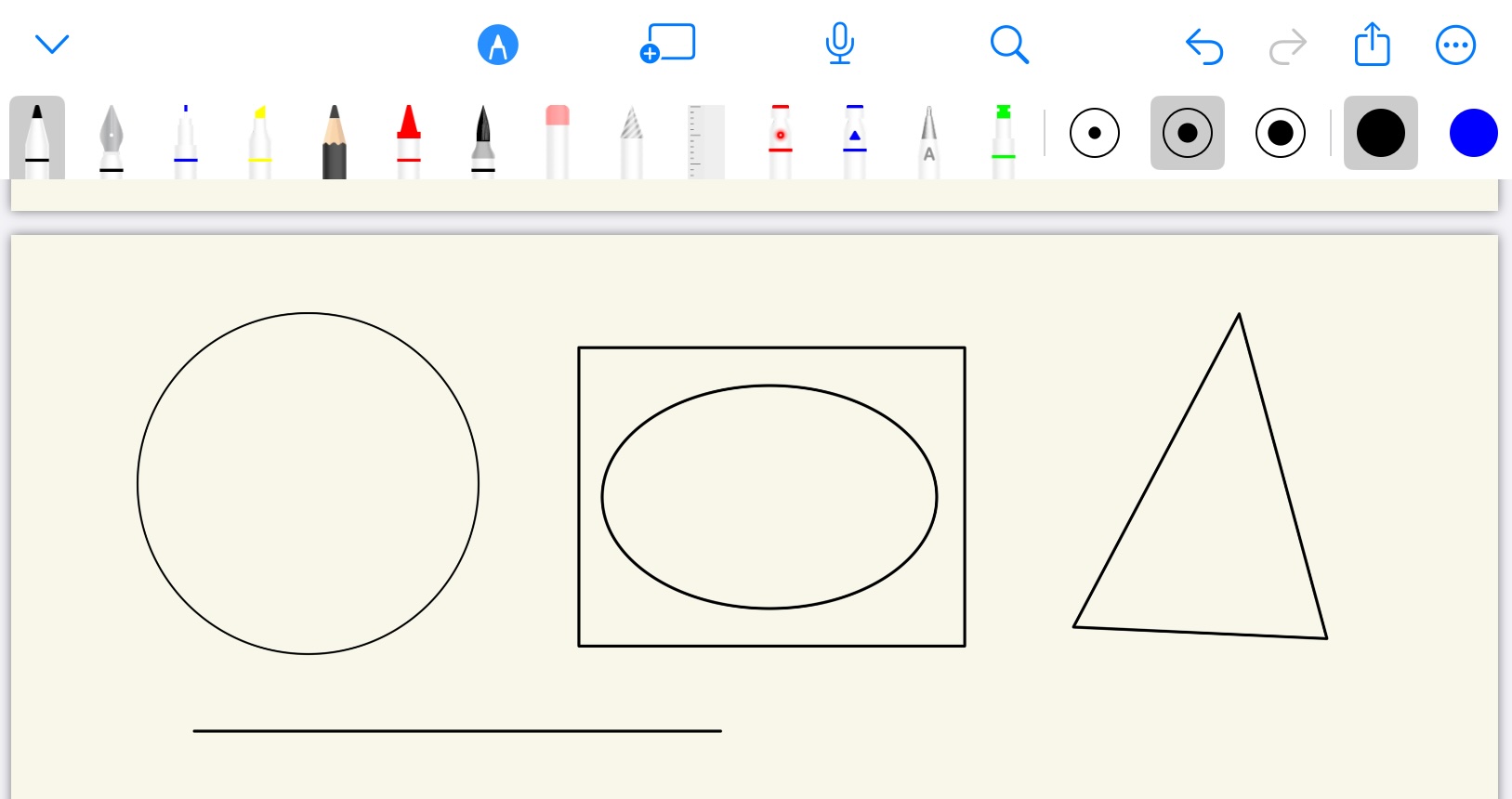
Draw a shape and hold for half a second to transform it into a precise shape. Draw and Hold works with every pen and brush; turn it off in a pen’s settings if you prefer freehand drawing.
Highlighter
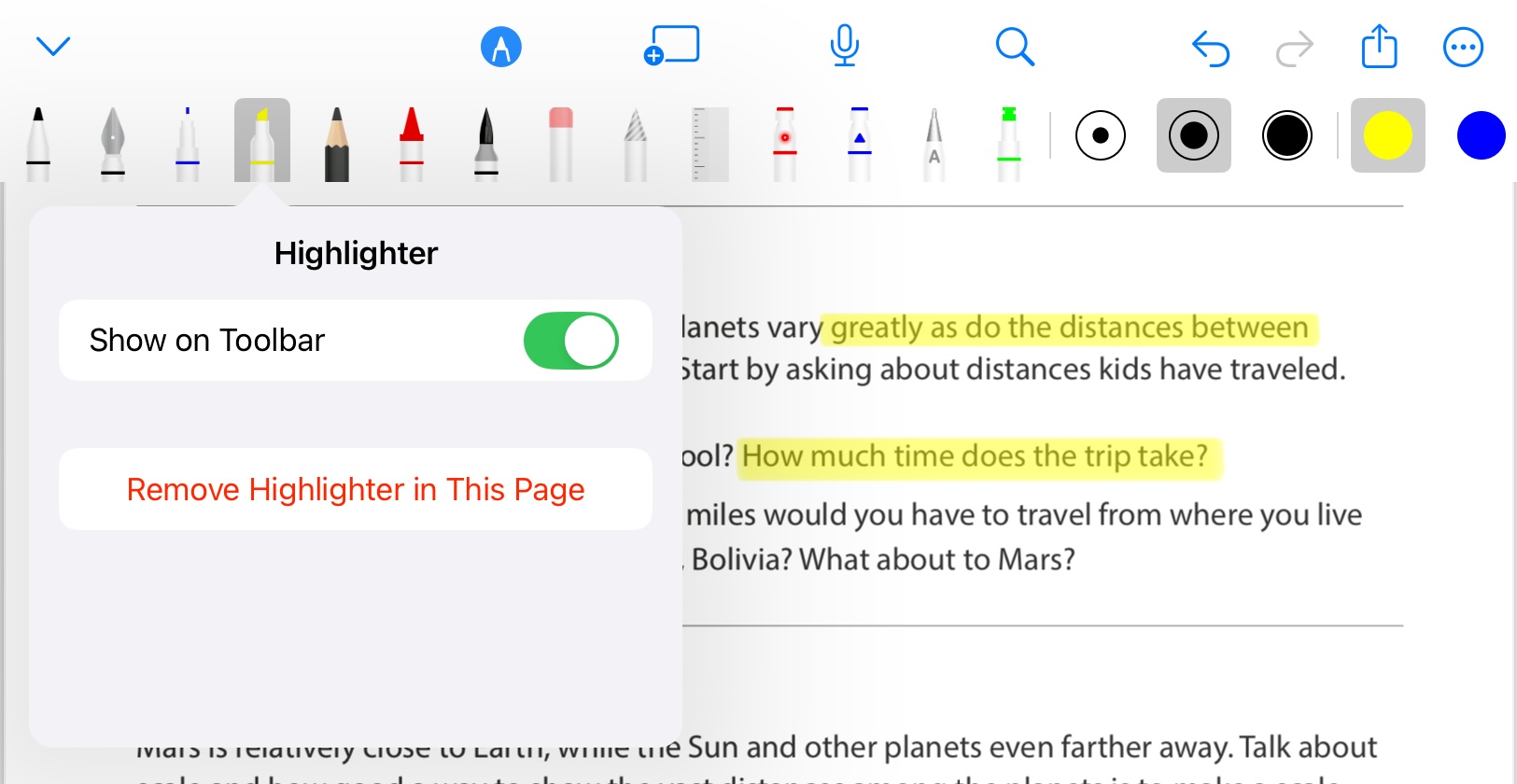
Use the highlighter to emphasize content. Draw a line and hold for half a second to turn it into a straight highlight line.
Use the eraser to remove a highlight. You can also remove all highlights on a page from the highlighter settings.
Lasso
Use the lasso tool to select content, then move, copy, or delete the selection.
Scribble
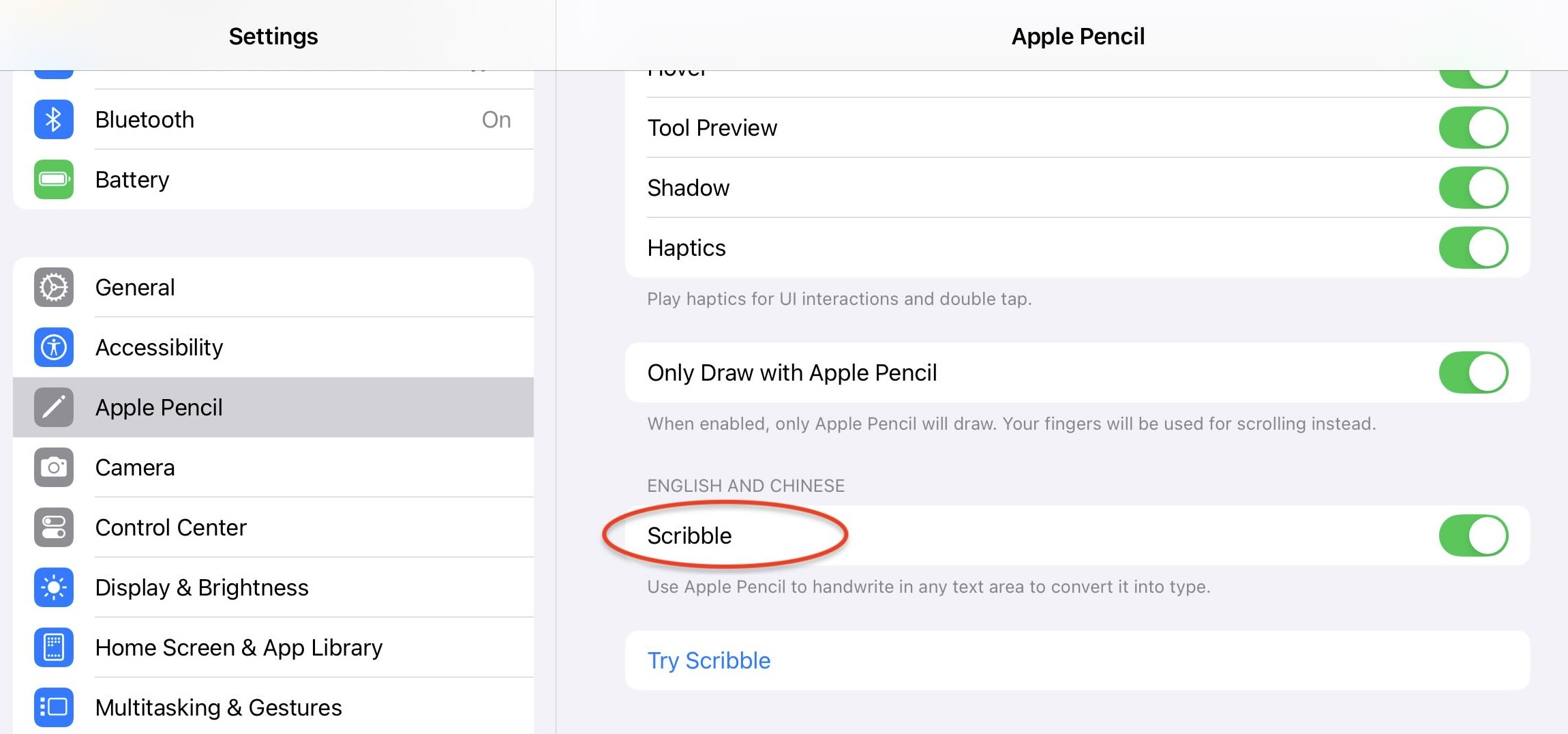
Write with the Scribble tool to convert handwriting to text instantly. Scribble is available on iPad only. If it does not work, turn on Scribble in iPadOS Settings.
Tape
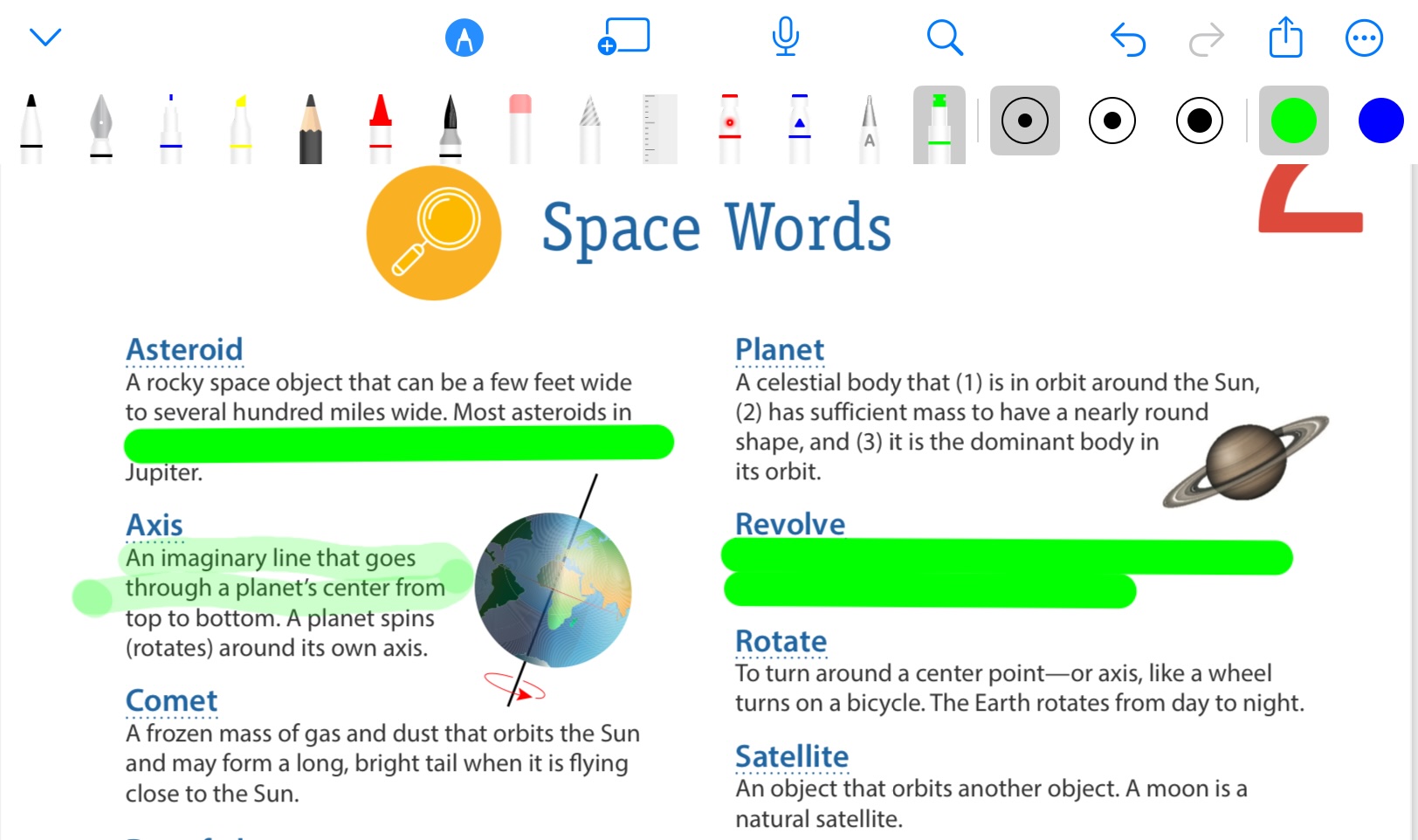
Use Tape to help memorize learning material. Draw tape over content you want to recall, tap it to reveal the content, then tap it again to hide it.
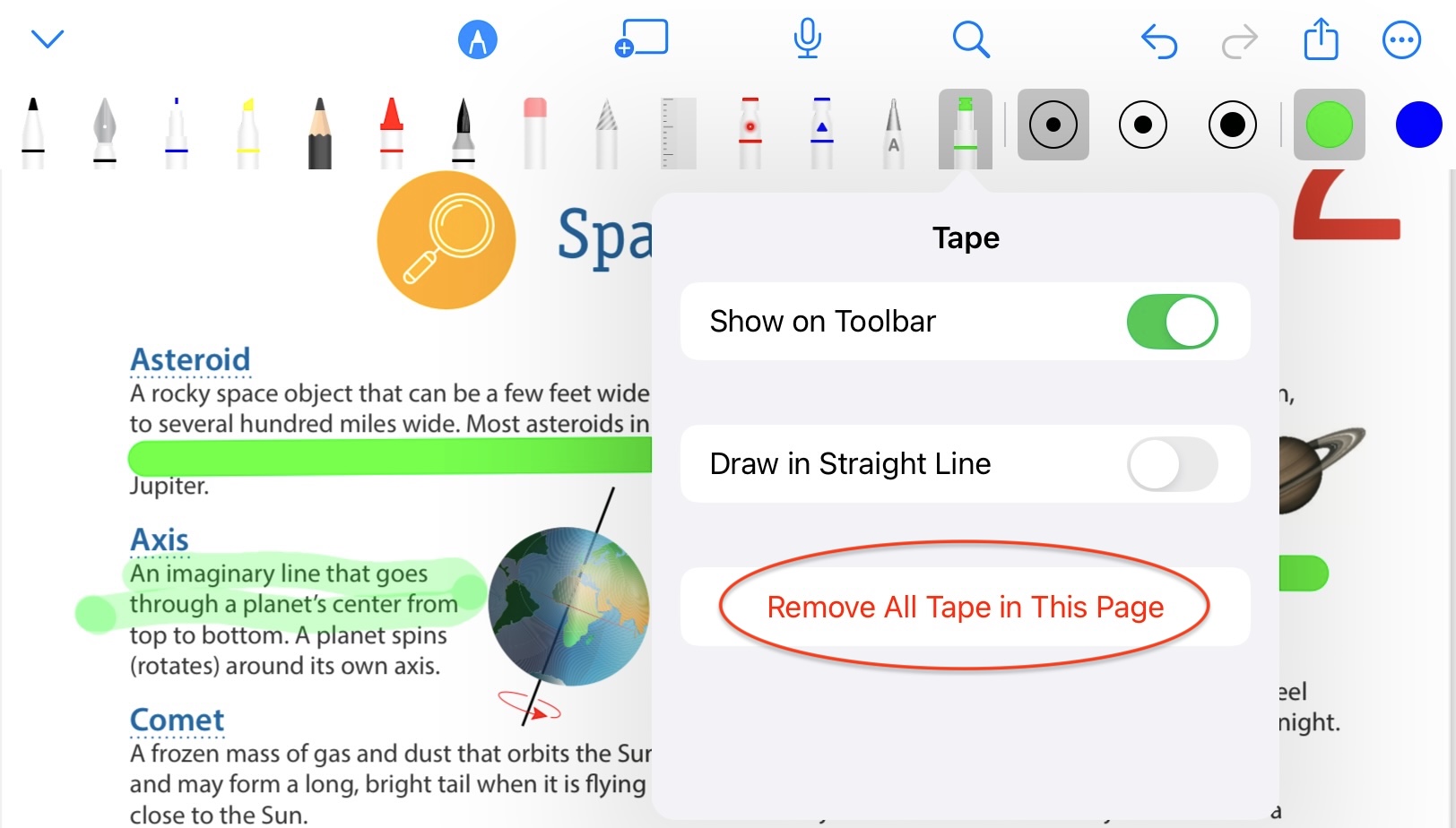
Use the eraser to remove tape. You can also remove all tape on a page from the Tape settings.
Laser
The laser tool is useful during a presentation to point out the content you are discussing.
Shape
Draw a shape and the Shape tool converts it into a precise circle, oval, rectangle, triangle, or line.